CreatiStudio
AI Image Remover
CreatiStudio is an AI studio for generating viral videos and images from URLs, images, or text, plus tools to swap elements like backgrounds.
Promoted
 Sidrune AI85% off. Stable Claude API for agent developers. Pay as you go. Invoices & refunds available.
 Pixmax.aiPixmax.ai is an all-in-one AI workspace for videos, visual stories, and marketing content.
 RewindType any X/Twitter handle. Get their year back as a narrated video story. Then ask it anything.
 KurodyneSell the tools from your AI side projects. Listing is free.
 SEOify - Improve your SEO & rankingsBuild links to rank in Google. Improve your DR with links you can start building now.Advertise here270,000+ people visit Dang.ai every month.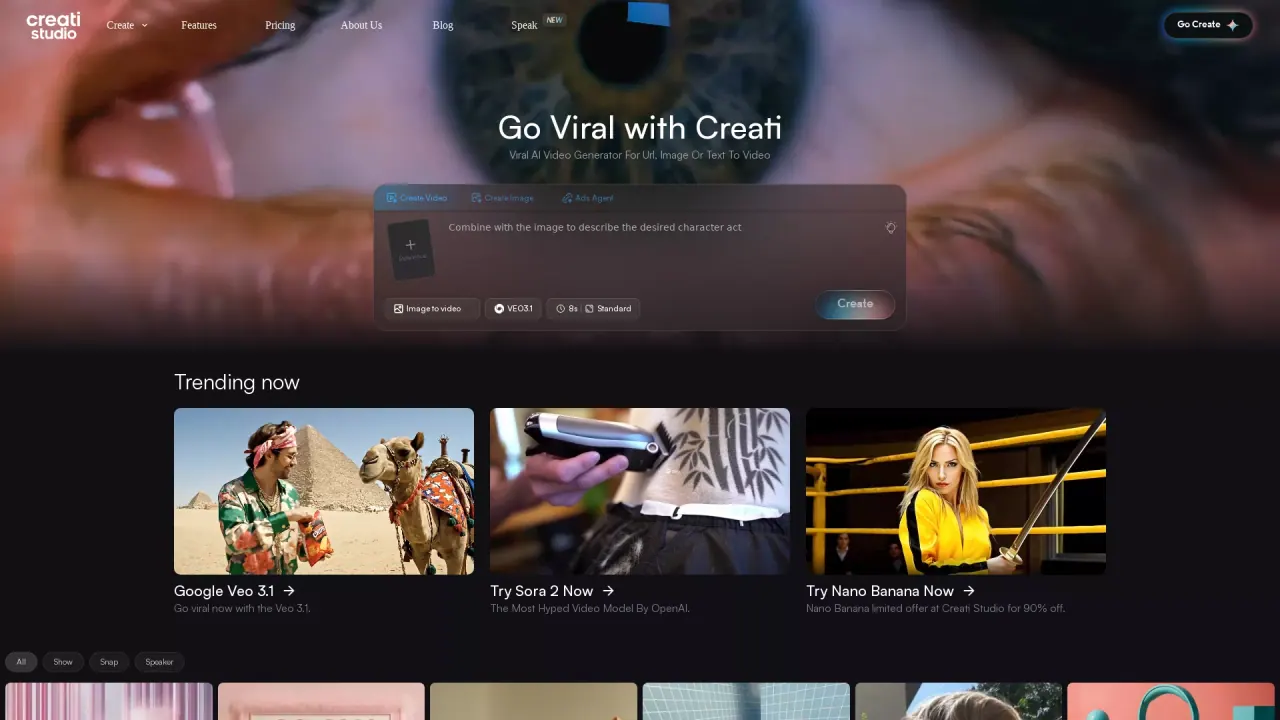
What does CreatiStudio do?
CreatiStudio is an AI video and image creation studio built to help you generate attention-grabbing creative quickly. It supports multiple creative inputs—product URLs, images, or text-to-video—so you can go from idea to shareable content without starting from scratch.
Key features include turning a product URL into a high-impact video in seconds, converting an image into a scroll-stopping video with one click, and remixing visuals using “Swap” to instantly change backgrounds, models, or products. You can also combine references with your description to guide what the AI creates.
CreatiStudio is designed for people who need fast content production—content creators, e-commerce owners, and marketing teams. If you’re looking for a streamlined workflow to produce social-ready videos and marketing assets, CreatiStudio gives you multiple ways to generate and iterate.
Pricing details are not clearly specified in the provided content. Some promotions are mentioned (e.g., a limited offer and other “Try now” calls), but no consistent plan structure or prices are included here. Use the Pricing section in the product to confirm the current options.
What can CreatiStudio create?
You can create videos and images, including image-to-video and text-to-video-style generation.
How do I generate a video from a product URL?
Drop your product URL to get a high-impact video in seconds, then use the “Get Started” flow to produce your creative.
Can I turn an image into a video?
Yes—use Snap Mode to turn any image into a scroll-stopping video with one click and endless looks.
What does “Swap” do in CreatiStudio?
Swap lets you instantly remix backgrounds, models, or products by changing elements without the usual back-and-forth.
Does CreatiStudio support referencing images when generating content?
Yes. You can combine with an image to describe what you want, using reference input to guide the output.
Is there a free trial or what does pricing cost?
The provided content highlights promotions, but it doesn’t list a complete pricing table. Check the Pricing section for the current plan details.
Is this your tool?
Claim CreatiStudio to manage this listing, or upgrade to Pro for featured-first placement and a newsletter feature.