PhotoToText.ai
Automation AI Tools
Free online OCR that extracts editable text from photos, screenshots, and PDFs in seconds—no sign-up required.


- Pricing
- Free
- Category
- Automation
- Listed
- Aug 15, 2026
- Updated
- Oct 16, 2026
Promoted
 Sidrune AI85% off. Stable Claude API for agent developers. Pay as you go. Invoices & refunds available.
 Pixmax.aiPixmax.ai is an all-in-one AI workspace for videos, visual stories, and marketing content.
 AI Checker PlusAI detector that highlights which passages AI wrote. Free check, no sign-up. Plagiarism too.
 RewindType any X/Twitter handle. Get their year back as a narrated video story. Then ask it anything.
 KurodyneSell the tools from your AI side projects. Listing is free.
 SEOify - Improve your SEO & rankingsBuild links to rank in Google. Improve your DR with links you can start building now.Advertise here270,000+ people visit Dang.ai every month.
What does PhotoToText.ai do?
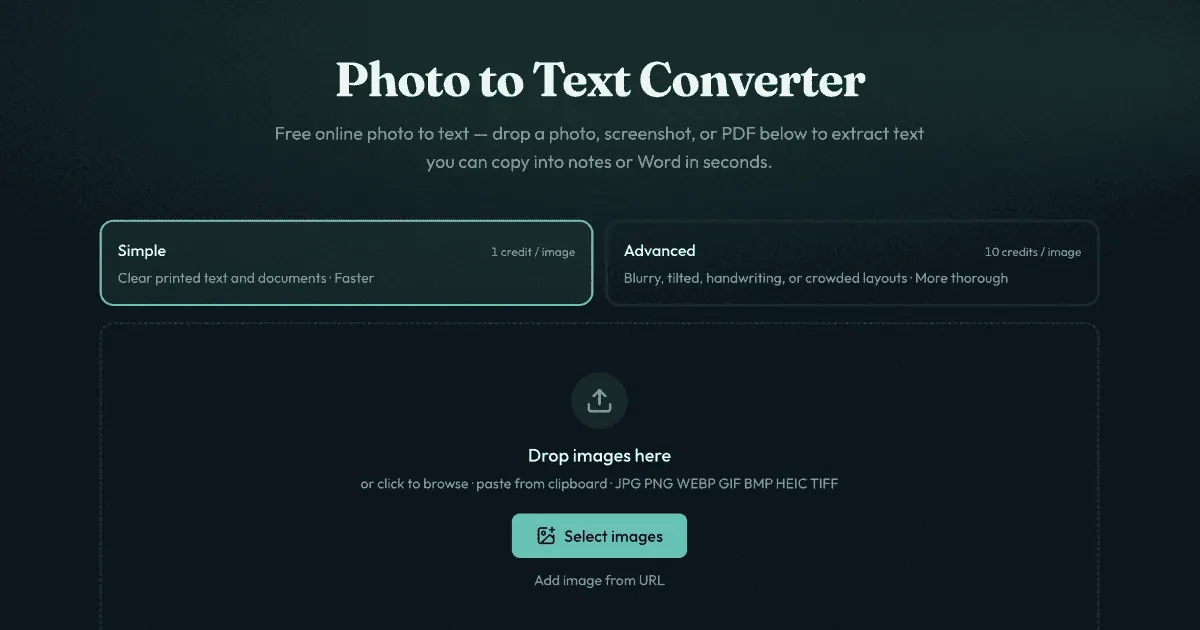
PhotoToText.ai is a free, web-based photo-to-text converter that extracts text from images, screenshots, and scanned PDF pages. Drop in a JPG, PNG, PDF, or other supported format and get OCR results you can copy into notes, Word, or spreadsheets—so you don’t have to retype what’s already on the page.
You can use it in two modes. Simple is for clear, printed text and straightforward documents. Advanced is designed for harder inputs like blurry photos, tilted pages, handwriting, crowded layouts, and table-like images—making it especially useful when you need more thorough extraction.
After OCR finishes, you can copy the output, or continue to a dedicated workflow when you need a file format. For example, convert images to Word for editable document text, or use the JPG to Excel flow to extract rows and columns from receipts and screenshot grids.
Pricing is available by document/page and depends on the mode: Simple uses 1 credit per page, while Advanced uses 10 credits per page. You can start without signing up, and guest conversions don’t store your data or keep guest results as account history.
Is PhotoToText.ai free to use?
Yes. You can start extracting text online without signing up. Credits and higher-capacity options (like Advanced) apply when you need more volume or thorough extraction.
What files can I upload for OCR?
You can convert common image formats like JPG, PNG, WEBP, HEIC, TIFF, and more, plus PDFs. It also supports screenshots and scanned document files.
Do I need an account to extract text?
No. No sign-up is required to convert. You can sign in later if you want Results history you can delete anytime or if you want to buy credits.
What’s the difference between Simple and Advanced?
Simple is for clear printed text and easy screenshots. Advanced is built for harder inputs like blur, tilt, handwriting, crowded layouts, and table/grid images.
Can I copy OCR text into Word?
Yes. After extraction, you can copy the results (with formatting) and paste into Word, or use the dedicated image-to-Word flow when you need a DOCX-style output for your document.
Can I convert a photo of a table into Excel?
Yes—use the JPG to Excel flow for receipts, screenshot tables, and scanned sheets. Extract the grid, edit cells, and then download XLSX, CSV, or TSV.
This listing is claimed
Own PhotoToText.ai? Sign in with the email used to claim it to manage this listing, or upgrade to Pro for featured-first placement and a newsletter feature.