
Cap
AI Meeting Assistant Tools
Cap is a lightweight, cross-platform open source screen recorder that instantly records, edits, screenshots, and shares with shareable links.
- Pricing
- Free
- Category
- Meetings
- Listed
- Aug 26, 2026
- Updated
- Oct 15, 2026
Promoted
 RewindType any X/Twitter handle. Get their year back as a narrated video story. Then ask it anything.
 KurodyneSell the tools from your AI side projects. Listing is free.
 Sidrune AI85% off. Stable Claude API for agent developers. Pay as you go. Invoices & refunds available.
 Pixmax.aiPixmax.ai is an all-in-one AI workspace for videos, visual stories, and marketing content.
 SEOify - Improve your SEO & rankingsBuild links to rank in Google. Improve your DR with links you can start building now.Advertise here270,000+ people visit Dang.ai every month.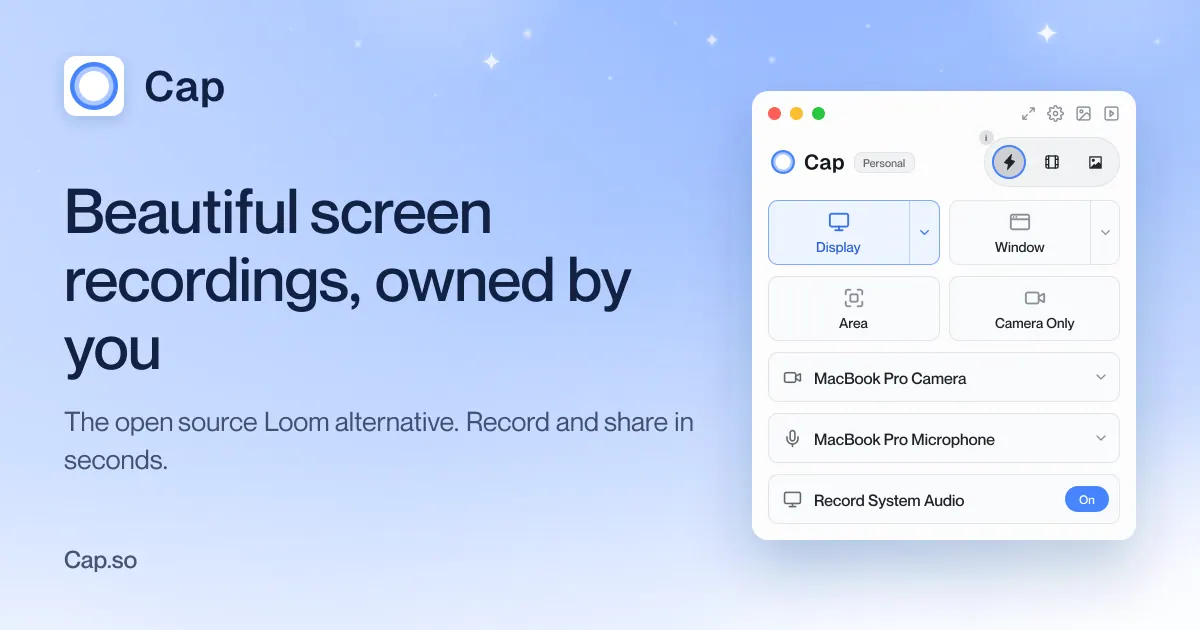
What does Cap do?
Cap is a single app for screen, webcam, and area capture—built to help you record, polish, and share without extra busywork. Capture with three modes: Instant for quick recordings that auto-generate a title, summary, chapters, and transcript; Studio for full-quality local recording plus an in-app editor; and Screenshot for hotkey grabs that turn stills into ready-to-share images.
Instant Mode is designed for fast workflows. Press record, talk through what you’re showing, then stop—your share link is copied to your clipboard. Viewers can watch in the browser without downloading, and you can choose to share publicly or privately with password protection for sensitive recordings. Instant recordings upload while you record, so the result is available immediately when you finish.
Studio Mode targets polished outputs. Record locally at full quality (4K at 60fps), keeping screen, camera, and microphone on separate tracks. When you stop, the built-in editor opens so you can blur private content, switch scenes between screen and camera, add text and captions, apply cursor effects and automatic zoom, and export in 4K or share via a Cap link.
Screenshot Mode lets you grab a window or any area with a hotkey, then beautify it using padding, rounded corners, shadows, and backgrounds (plus annotation tools). It’s a great fit for docs, pull requests, and social posts where the still needs to look intentional.
Cap supports free use, and upgrading to Cap Pro adds unlimited cloud features for sharing and collaboration (with pricing available on the product’s pricing page). Cap is open source and can be self-hosted, with options to store recordings in your own Google Drive or S3 bucket.
What can I record with Cap?
Cap can capture your screen, webcam, or a selected area. You can also use Screenshot Mode to grab a window or area as a still image.
How does Instant Mode sharing work?
Record and stop, and the share link is automatically copied to your clipboard. Viewers can watch in the browser without needing an account, and you can password-protect sensitive recordings.
What’s the difference between Instant Mode and Studio Mode?
Instant Mode uploads while you record and focuses on quick shareable links plus auto-generated titles, summaries, chapters, and transcripts. Studio Mode records locally at full quality and opens an editor for blur/censoring, scenes, captions, zoom/cursor effects, and exporting.
What can I do in the Studio Mode editor?
You can blur or pixelate private areas, switch scenes between screen and camera, add backgrounds and on-screen text/captions, apply automatic zoom and cursor effects, and trim/split/reorder clips for a polished export.
Can I use Cap without uploading recordings?
Yes. Studio Mode records locally, and Cap also supports self-hosting for teams who want to keep control over where recordings go.
Where can recordings be stored?
You can use Cap Cloud, connect your own Google Drive, connect your own S3 bucket, or self-host the platform.
Is this your tool?
Claim Cap to manage this listing, or upgrade to Pro for featured-first placement and a newsletter feature.