
Image to 3D Model
Verified
3D Modeling AI Tools
Convert a JPG, PNG, or WebP into a rotatable 3D model using AI, with free trial credits available after Google sign-in.
Promoted
 Sidrune AI85% off. Stable Claude API for agent developers. Pay as you go. Invoices & refunds available.
 Pixmax.aiPixmax.ai is an all-in-one AI workspace for videos, visual stories, and marketing content.
 AI Checker PlusAI detector that highlights which passages AI wrote. Free check, no sign-up. Plagiarism too.
 RewindType any X/Twitter handle. Get their year back as a narrated video story. Then ask it anything.
 KurodyneSell the tools from your AI side projects. Listing is free.
 SEOify - Improve your SEO & rankingsBuild links to rank in Google. Improve your DR with links you can start building now.Advertise here330,000+ people visit Dang.ai every month.
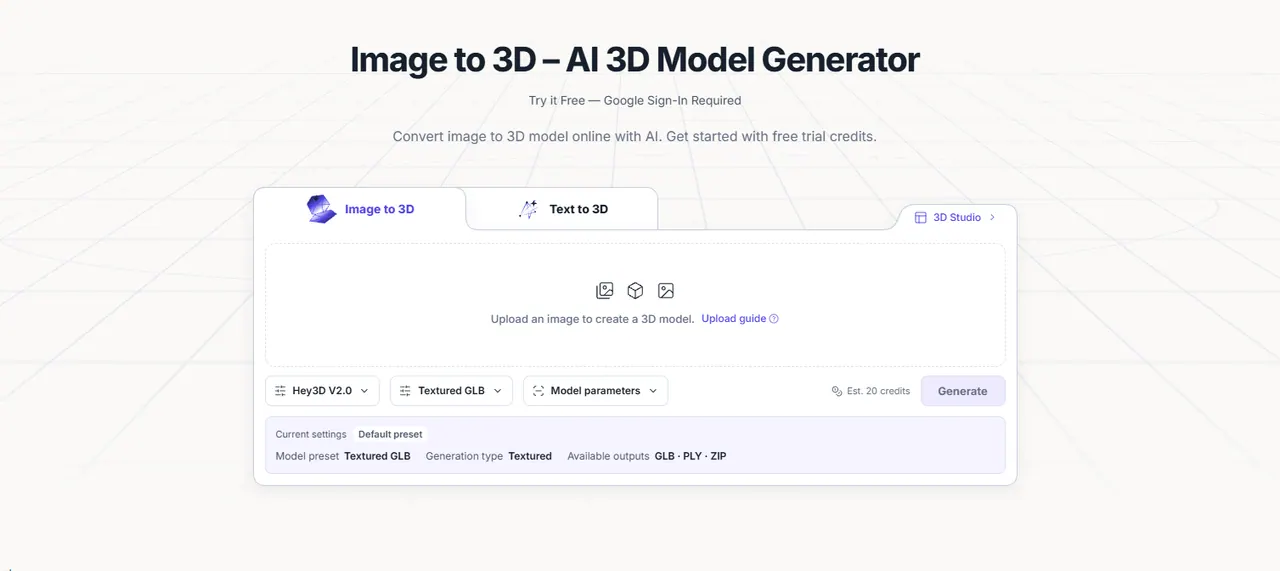
What does Image to 3D Model do?
Image to 3D turns a clear visual reference into a 3D mesh you can rotate, inspect, and edit. It’s designed as a starting point for creative work—not a measured scan—so dimensions and unseen areas are estimated. For best results, use a complete subject with even lighting and a simple background.
In the workflow, you upload an image (JPG, PNG, or WebP up to 20MB), then choose generation quality by reviewing the credit estimate before starting. After generation, inspect the model from multiple angles to catch geometry issues in hidden surfaces, thin parts, and underside areas. You can then export the 3D model in an available format for your next step.
This tool is useful when you need quick blockouts or visual exploration: game assets and concept art, product visualization and ecommerce previews, and prototyping paths like 3D printing (after cleanup and checks). It can also support lightweight web, AR, and spatial experiences—though you may need polygon reduction or texture adjustments depending on the target device.
You’ll create a draft first to verify proportions, then refine details only if the reference produces the shape you want. Free trial credits are available, with Google sign-in required to get started.
What kinds of images can I upload to generate a 3D model?
Upload a JPG, PNG, or WebP (up to 20MB). Use one complete, centered subject for the most reliable results.
Is the output a measured 3D scan or an estimated mesh?
It’s an estimated mesh created from a visual reference. Unseen areas and dimensions are inferred, so it’s best as a starting point rather than a precise scan.
How should I choose an image reference for best results?
Use sharp edges, even lighting, and a front or three-quarter view with the whole object visible. Avoid heavy crops, motion blur, overlapping subjects, busy scenes, and transparent or mirror-like surfaces when possible.
Can I download and use the generated model in other tools?
Yes. After inspecting the draft, download the result in an available export format and then use compatible tools for conversion or further editing.
Which 3D file formats can I export?
Available exports depend on the provider and the result. You may find options such as GLB, OBJ, STL, FBX, or USDZ—check the actual download choices in the workspace.
Is image-to-3D suitable for 3D printing?
Yes, after checks and often some cleanup. Ensure the mesh is closed, scaled correctly, and thick enough; repair gaps/intersections and verify your sliced layers before printing.
This listing is claimed
Own Image to 3D Model? Sign in with the email used to claim it to manage this listing, or upgrade to Pro for featured-first placement and a newsletter feature.