
VideoBGRemover
AI Video Maker Generators & Tools
Remove video backgrounds online with AI—green screen optional—then preview and export transparent WebM/ProRes or a background-filled MP4.
- Pricing
- Free trial
- Category
- Video
- Listed
- Oct 9, 2026
- Updated
- Oct 24, 2026
Promoted
 RewindType any X/Twitter handle. Get their year back as a narrated video story. Then ask it anything.
 KurodyneSell the tools from your AI side projects. Listing is free.
 Sidrune AI85% off. Stable Claude API for agent developers. Pay as you go. Invoices & refunds available.
 Pixmax.aiPixmax.ai is an all-in-one AI workspace for videos, visual stories, and marketing content.
 SEOify - Improve your SEO & rankingsBuild links to rank in Google. Improve your DR with links you can start building now.Advertise here270,000+ people visit Dang.ai every month.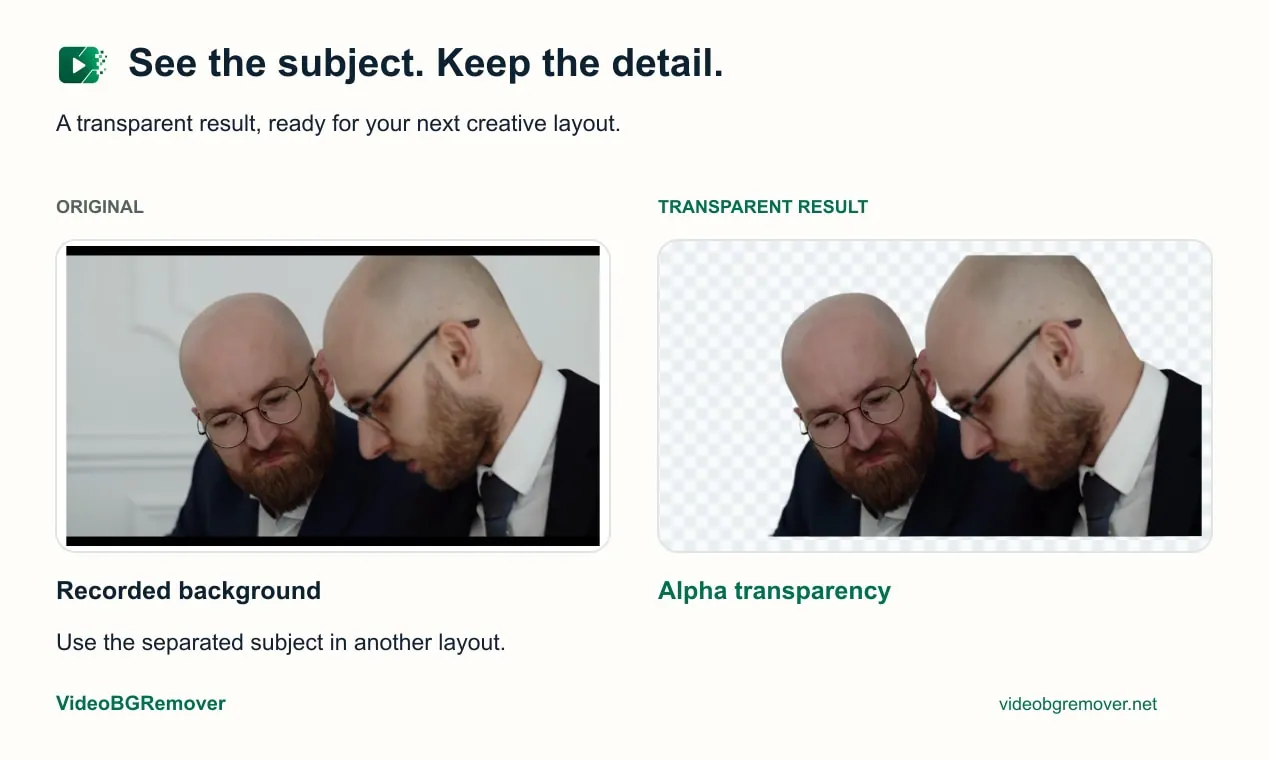
What does VideoBGRemover do?
VideoBGRemover removes the recorded background from an uploaded video using AI, producing a transparent clip you can reuse in your projects. Upload your footage, select the section you want to keep, and let the tool separate the subject from the scene while preserving motion and the expected audio.
The workflow is designed for inspection before you export. You can compare an original frame with an actual processed result, and use transparency previews (checkerboard) to verify fine edge detail. Since edge quality can vary across frames, reviewing the result helps you confirm that the subject looks right throughout the selected segment.
After processing, you can download outputs that fit different use cases. Export options include a transparent WebM for web workflows, an eligible transparent ProRes 4444 MOV for editing pipelines, or a background MP4 where the subject sits over a chosen color or image while audio is preserved.
You can remove ordinary recorded backgrounds without drawing masks frame-by-frame, and a green screen is optional rather than required. Jobs continue in the background after you start, so you can close the page and return with the same account to review the saved result.
Pricing is available as free background removal, one-time credit packs (e.g., Creator $9, Pro $29, Studio $69), and monthly subscriptions (Creator $12/month, Pro $29/month, Studio $69/month), with credit limits and per-video time caps described in the plans.
Do I need a green screen to remove a video background?
No. Green screen is optional—if your subject is clearly visible against the background, the tool can separate it from ordinary recorded scenes.
Can I choose only part of my video for processing?
Yes. You select the clip section you want to reuse, and that selected segment is processed to remove the background while keeping the subject’s movement.
Will the transparent video keep my audio?
Yes. The selected section is turned into a transparent video while preserving the movement and expected audio.
What formats can I download after background removal?
You can download a transparent WebM for web use, an eligible transparent ProRes 4444 MOV for compatible editing workflows, or a background MP4 for standard playback with a chosen backdrop.
Can I preview the result before exporting?
Yes. You can inspect the subject over transparency (checkerboard) or a preview background, and compare the result to the original frame.
What happens if I close the page while processing?
Processing continues in the background. You can return later with the same account to review and download the saved result.
This listing is claimed
Own VideoBGRemover? Sign in with the email used to claim it to manage this listing, or upgrade to Pro for featured-first placement and a newsletter feature.