
Veo 3
AI Video Maker Generators & Tools
Turn a written idea or reference image into a short, reviewable AI video with Veo 3’s guided subject motion, camera movement, and sound.
- Pricing
- Free
- Category
- Video
- Listed
- Sep 6, 2026
- Updated
- Oct 19, 2026
Promoted
 AI Checker PlusAI detector that highlights which passages AI wrote. Free check, no sign-up. Plagiarism too.
 RewindType any X/Twitter handle. Get their year back as a narrated video story. Then ask it anything.
 KurodyneSell the tools from your AI side projects. Listing is free.
 Sidrune AI85% off. Stable Claude API for agent developers. Pay as you go. Invoices & refunds available.
 Pixmax.aiPixmax.ai is an all-in-one AI workspace for videos, visual stories, and marketing content.
 SEOify - Improve your SEO & rankingsBuild links to rank in Google. Improve your DR with links you can start building now.Advertise here330,000+ people visit Dang.ai every month.
What does Veo 3 do?
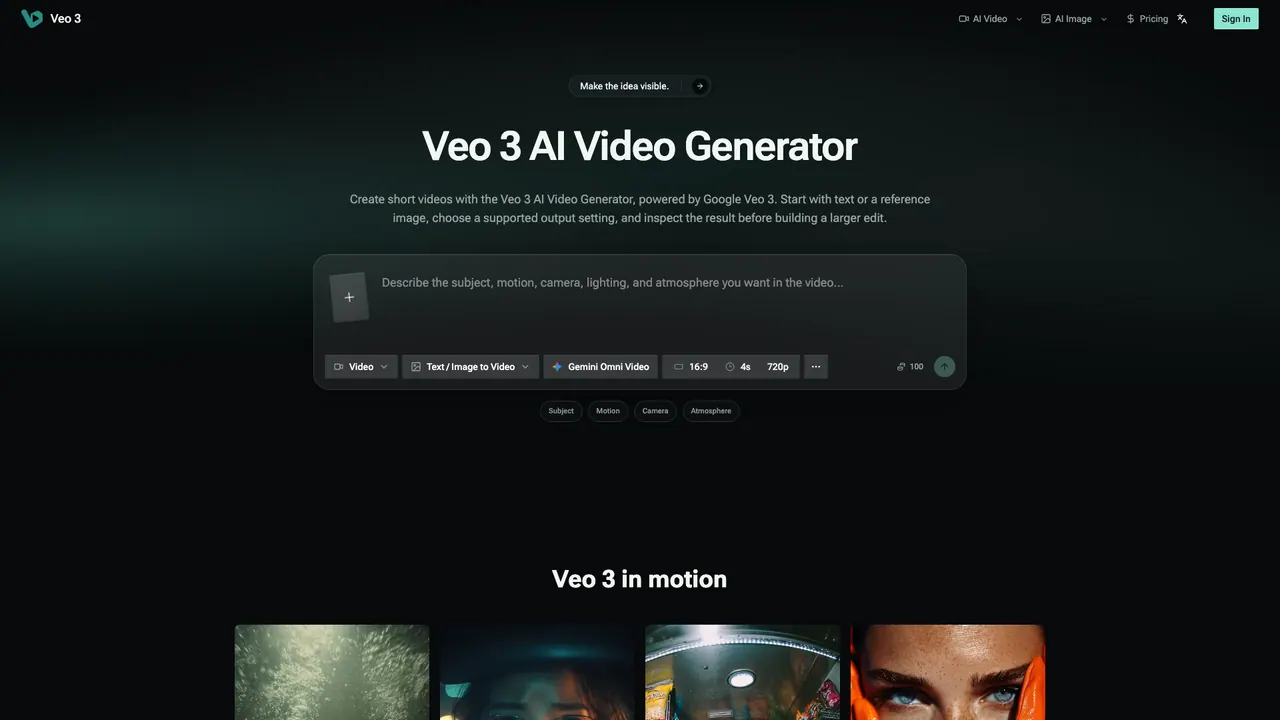
Veo 3 is an AI video generator that creates short videos from text or a reference image, powered by Google Veo 3. It’s designed for turning a creative concept into a clip you can immediately inspect—before committing to a larger edit, production, or storyboard.
Start with a written scene when you’re still defining the subject, action, setting, lighting, and mood. Or begin with a reference image when appearance matters and you want to preserve specific visual anchors like a product shape, character look, material, or composition—then let Veo 3 introduce subject motion and camera movement around that starting point.
To get clearer results, describe the camera move alongside the action it should reveal. Add ambience, effects, or dialogue when sound changes the moment so the audio matches the visual beat. You can also choose output settings like available model options, aspect ratio, duration, and resolution before generating to match the clip to its intended framing (including formats suited to different social layouts).
Veo 3 works well for decision-making: test one creative question per draft—subject motion, camera placement, opening frame clarity, or sound support—then iterate by changing only the largest mismatch. Review generated material for framing, continuity, identity details, and any audio included, and keep the useful parts for a more focused next pass.
What does Veo 3 generate?
Veo 3 creates short AI videos from text (text-to-video) or from a reference image (image-to-video), producing a clip you can review before building a larger sequence.
Do I need existing footage before using Veo 3?
No. You can start directly with a written scene or with a reference image to guide the subject, action, and camera movement for the generated short clip.
When should I use text input versus a reference image?
Use text when you’re defining the scene and want control over the subject, action, lighting, atmosphere, and mood. Use a reference image when you need specific appearance elements—like a product shape, character look, or material—to stay recognizable.
Can Veo 3 include sound in the generated result?
Yes. If a moment needs dialogue, room tone, or a physical sound effect, you can include it in your scene description so the audio aligns with the visual beat in supported results.
What can I control before generating a video?
Before generating, choose the available output settings such as model options, aspect ratio, duration, and resolution, then describe the subject motion, camera movement, and scene atmosphere (including sound when needed).
How should I evaluate the first Veo 3 draft?
Watch the opening and closing frames and track whether the subject motion and camera settle where you intended. Listen for the sound support, then revise the single largest mismatch rather than changing everything at once.
This listing is claimed
Own Veo 3? Sign in with the email used to claim it to manage this listing, or upgrade to Pro for featured-first placement and a newsletter feature.