Image to 3D AI
Verified
AI Art Generator & Creator Tools
Generate production-ready 3D models from your images (or prompts) using an AI 3D generator—free and online.
Promoted
 Sidrune AI85% off. Stable Claude API for agent developers. Pay as you go. Invoices & refunds available.
 Pixmax.aiPixmax.ai is an all-in-one AI workspace for videos, visual stories, and marketing content.
 AI Checker PlusAI detector that highlights which passages AI wrote. Free check, no sign-up. Plagiarism too.
 RewindType any X/Twitter handle. Get their year back as a narrated video story. Then ask it anything.
 KurodyneSell the tools from your AI side projects. Listing is free.
 SEOify - Improve your SEO & rankingsBuild links to rank in Google. Improve your DR with links you can start building now.Advertise here270,000+ people visit Dang.ai every month.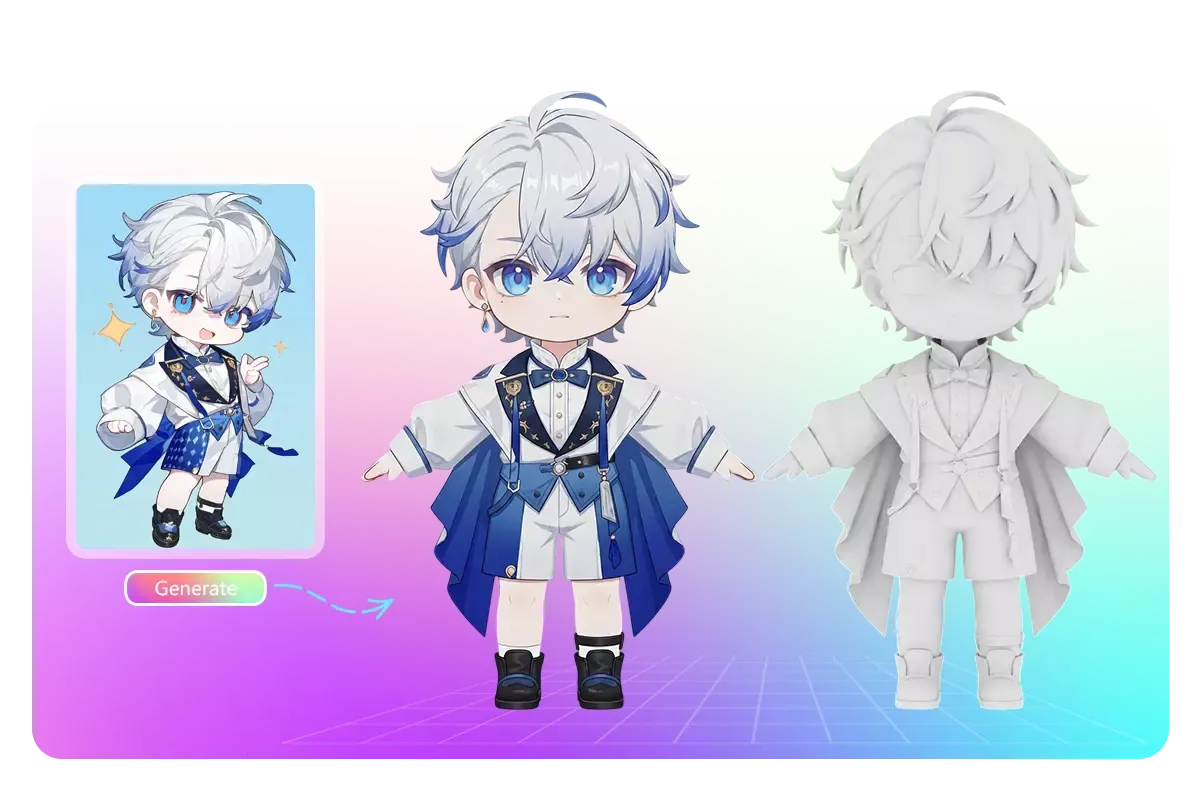
What does Image to 3D AI do?
Image to 3D AI is a free, online AI 3D model generator that converts reference images into production-ready 3D models in minutes. It’s designed for fast iteration when you have character illustrations, three-view drawings, or other clear reference artwork and want a 3D draft without complex modeling steps.
In the Playground, you can upload a JPG, PNG, or WEBP file (up to 6 MB) and generate your model. If you want more accurate results, you can try Multi-view to 3D, which supports generating based on reference views. The generator is also guided by practical reference-quality expectations (for example: a complete subject, a clear silhouette, balanced lighting, and a clean, uncluttered background).
For deeper control, advanced options let you enable PBR Material and adjust generation settings. You can choose what to generate (such as Texture or Geometry), select topology style (Quad or Triangle), and work with output options like Normal and Geometry where available through the advanced controls.
After generation, your model appears in the workspace for review. You can also use included 3D tools such as a 3D model file converter and a 3D file viewer to inspect and manage your 3D outputs. If you prefer starting from prose instead of an image, switch to Text to 3D using your prompt.
What does Image to 3D AI do?
It converts a reference image into a 3D model using an AI 3D model generator. You can use it to quickly draft 3D assets from clear character illustrations or three-view drawings.
What image formats can I upload?
You can upload JPG, PNG, or WEBP files in the generator.
Is there an upload size limit?
Yes. Your reference image must be 6 MB or less.
Can I generate a 3D model from text instead of an image?
Yes. Use the Text to 3D option and generate from your text prompt rather than uploading an image.
What advanced options are available?
You can enable PBR Material and choose generate type (like Texture or Geometry), plus select topology (Quad or Triangle). Additional output controls such as Normal and Geometry are available through the advanced settings.
How do I view or convert the 3D results?
The generated model displays in the workspace when ready. You can also use the included 3D file viewer and 3D model file converter tools to inspect and manage your outputs.
This listing is claimed
Own Image to 3D AI? Sign in with the email used to claim it to manage this listing, or upgrade to Pro for featured-first placement and a newsletter feature.