
AIFaceSwap
Verified
Face Swap Tool
AIFaceSwap is a free, no-login AI face swap tool for photos and videos that generates watermark-free results.
Promoted
 Pixmax.aiPixmax.ai is an all-in-one AI workspace for videos, visual stories, and marketing content.
 RewindType any X/Twitter handle. Get their year back as a narrated video story. Then ask it anything.
 KurodyneSell the tools from your AI side projects. Listing is free.
 Sidrune AI85% off. Stable Claude API for agent developers. Pay as you go. Invoices & refunds available.
 SEOify - Improve your SEO & rankingsBuild links to rank in Google. Improve your DR with links you can start building now.Advertise here270,000+ people visit Dang.ai every month.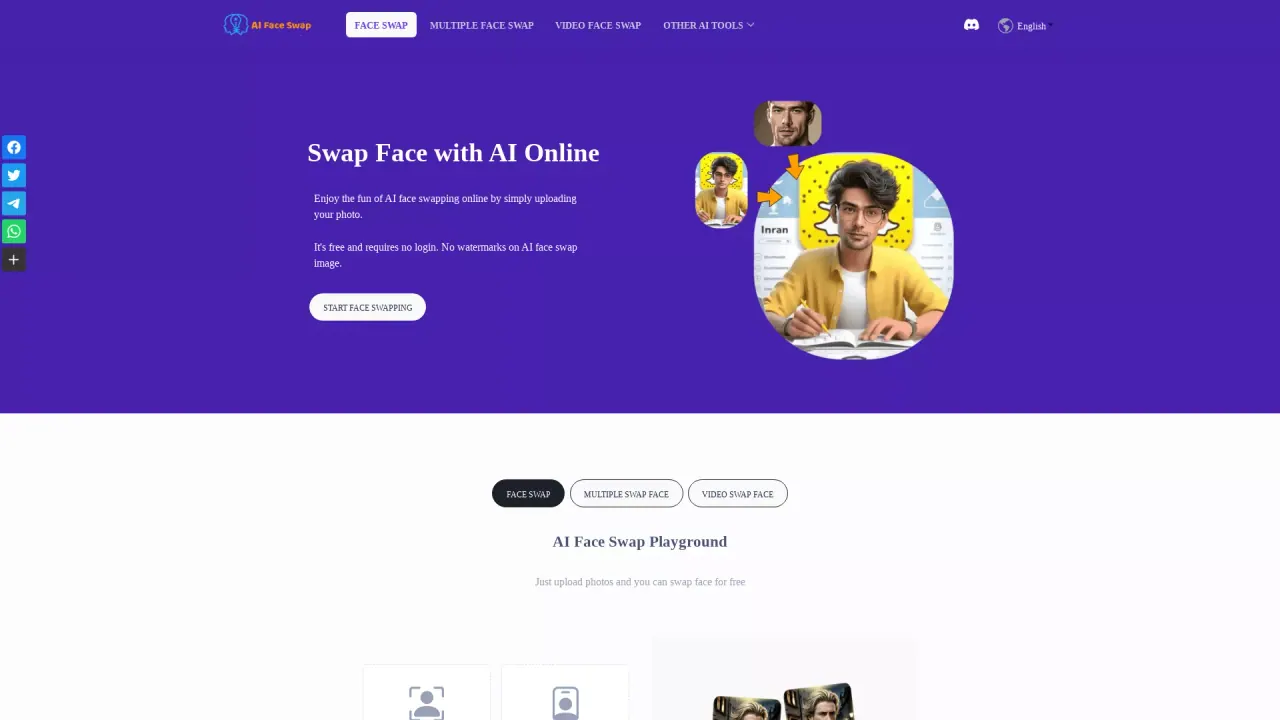
What does AIFaceSwap do?
AIFaceSwap lets you enjoy AI face swapping directly in your browser by uploading images (and supported media) to generate face-swapped results. Use the AI Face Swap Playground to swap a face in your photo with another face—perfect for quick creative edits, fun memes, and playful transformations.
The core workflow is simple: upload your original image in the “Source Image” section, upload the face you want to swap in via the “Swap Face From (Face Image)” section, then click “Swap Face” and wait a few seconds for the AI to generate the output. For best results, include one face in the original image and use clear, realistic facial features. The tool also supports multiple face swapping options and variants beyond single photo swaps.
Along with photo face swapping, AIFaceSwap includes a Video Face Swap feature, plus GIF face swap and batch options for swapping faces across multiple images. You can also download your generated image by using the download option under the result (with standard right-click on PC or long-press on mobile).
Aifaceswap is free and requires no login, with watermark-free outputs for generated images. For premium use, longer video face swaps, advanced video face swap access, batch face swap access, no waiting queues, faster processing for paid users, and access to more AI video and image tools are available—details are managed through the site’s credits/premium flow.
Is AIFaceSwap free to use?
Yes—AIFaceSwap is free to use and doesn’t require login to start swapping.
Do the face-swapped images have watermarks?
No. Outputs are generated without watermarks.
How do I swap a face in a photo?
Open the AI Face Swap Playground, upload your original image in “Source Image,” upload the face you want in “Swap Face From,” then click “Swap Face” and wait for the result.
What should I upload for the best results?
Use clear facial features and try to include only one face in the original image. If your photo has multiple faces, use the multiple face swap option instead.
Can I swap faces in videos and GIFs?
Yes. The platform includes Video Face Swap and Gif Face Swap features.
How do I download the generated face swap?
On PC, right-click the generated image and choose “Save image as…”. On mobile, long-press the image and select “Save Image” to store it in your gallery.
This listing is claimed
Own AIFaceSwap? Sign in with the email used to claim it to manage this listing, or upgrade to Pro for featured-first placement and a newsletter feature.