
Dayvid
AI Video Maker Generators & Tools
Turn your music track into a captioned AI video and publish it to YouTube, TikTok, and Instagram in a few steps.
- Pricing
- Free
- Category
- Video
- Listed
- Jun 9, 2026
- Updated
- Jun 10, 2026
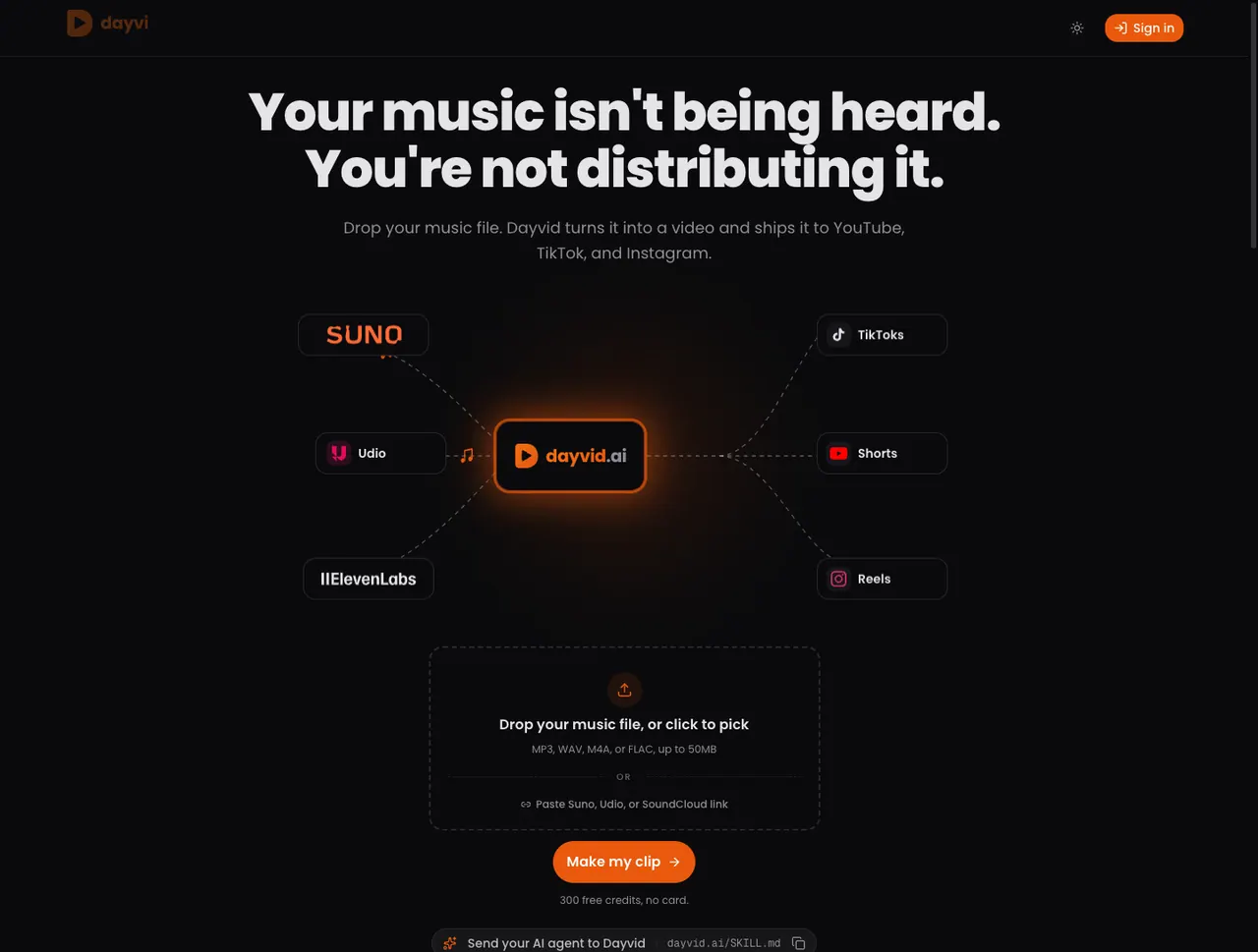
What does Dayvid do?
Dayvid is an audio-first AI video creation platform built to turn a music track into a ready-to-publish video. Upload an MP3, WAV, M4A, or FLAC file (up to 50MB) or paste a link from Suno, Udio, or SoundCloud, and Dayvid generates a vertical clip with synced captions.
Create a consistent channel look by choosing a brand kit—logo, outro, default description, and fonts—then render your video with lyrics built in as word-level synced captions. After rendering, publish in one click to YouTube via OAuth or download the MP4 for Reels and TikTok.
Dayvid includes free credits to start, and paid plans scale with monthly credits, brand kits, and whether you have API access and higher posting limits for multi-video workflows.
How do I turn my music into a video on Dayvid?
Drop a music file (MP3, WAV, M4A, or FLAC) or paste a Suno/Udio/SoundCloud link. Then pick your channel brand, render the video with synced lyrics, and publish (YouTube in one click, or download MP4 for Reels/TikTok).
Where can I publish the videos?
YouTube publishing is available in one click via OAuth. For TikTok and Instagram Reels, Dayvid renders a vertical MP4 you can upload.
Do I need to type lyrics manually for the captions?
No—Dayvid auto-transcribes the vocals from your track. If you prefer, you can paste your lyrics to ensure 100% accuracy from the start.
What formats does Dayvid export?
Vertical video is rendered by default for Shorts, Reels, and TikTok. Square export for Instagram feed posts is on the roadmap.
What are credits, and how do I know video cost?
Credits are the currency used for each AI operation, with a typical 1-minute video using around 220 credits. You can view the exact credit cost before each render and top up anytime.
Can I manage multiple faceless music channels?
Yes. Set up a separate Brand per channel (logo, colors, outro, and description template), then select the right brand at the start of each render.
Is this your tool?
Upgrade Dayvid to Pro for featured-first placement, a newsletter feature and ongoing listing management.